SSH remote terminal
Copyright © Quectel Wireless Solutions Co., Ltd. 2026. All rights reserved.
SSH (Secure Shell Protocol) is an encrypted remote login protocol that allows users to securely access the Quectel Pi M2 Debian system terminal over the network from a computer. Through SSH, users can remotely execute commands, view service status, modify configuration files, and perform system debugging. It is suitable for scenarios such as development debugging, remote maintenance, and headless deployment.
💡 Prerequisites:
The Quectel Pi M2 development board has been connected to a network that is reachable from the computer via Ethernet, Wi-Fi, or USB networking, and has obtained an IP address.
The Quectel Pi M2 device desktop environment is primarily GNOME. Enter the system through the Debug Uart serial console; for the default login user, please follow the guide to use the account and password you created.
Preparation
Prepare a Quectel Pi M2 development board with the Debian system started.
Confirm that the development board and the computer are on the same reachable network.
Prepare a local debugging entry point for first-time enabling or checking the SSH service:
A monitor and keyboard;
The Debug Uart serial console;
Any other available local terminal entry point.
Prepare an SSH client on the computer:
Windows: QPiTerminal is recommended;
Linux: The
sshcommand is usually built-in;macOS: You can directly use the
sshcommand in Terminal.
Software Installation
The Quectel Pi M2 Debian system can use OpenSSH Server to provide SSH remote terminal service. After entering the development board through the serial console, execute the following command to check whether it is installed:
dpkg -l | grep -E "openssh-(server|client)"
If openssh-server is not installed, you can execute the following in the ADB Shell or serial console:
sudo apt update
sudo apt install -y openssh-server
Software Configuration
The main configuration file for the SSH service is /etc/ssh/sshd_config. Common configuration items are as follows:
Configuration Item |
Description |
|---|---|
Port |
The port the SSH service listens on. The default port is |
PasswordAuthentication |
Whether password login is allowed. This item may exist in commented form in the default configuration; the actual behavior follows OpenSSH defaults and system policy. |
PermitRootLogin |
Whether root user login is allowed. It is recommended to log in as a regular user and then use |
PubkeyAuthentication |
Whether key-based login is allowed. |
View the key configuration items through the serial console:
grep -nE "^(#)?(Port|PermitRootLogin|PasswordAuthentication|PubkeyAuthentication|AllowUsers|DenyUsers)" /etc/ssh/sshd_config
To modify the SSH port, edit the configuration file:
sudo vi /etc/ssh/sshd_config
After modification, first check the configuration syntax, then restart the SSH service:
sudo sshd -t
sudo systemctl restart ssh
💡 Before modifying the port, firewall, or authentication method, please ensure that you still have a recoverable entry point such as the serial console or a local monitor, to avoid being unable to log in remotely after a configuration error.
Software Startup
Start the SSH service on the development board through the serial console:
sudo systemctl start ssh
Set it to start on boot:
sudo systemctl enable ssh
View the service status:
systemctl is-active ssh
systemctl is-enabled ssh
If systemctl is-active ssh outputs active, the SSH service is running; if systemctl is-enabled ssh outputs enabled, the SSH service is set to start on boot.
Remote Login
Obtaining the System IP Address
Execute the following command on the development board through the serial console to view the IP address:
hostname -I
In actual use, please refer to the IP address currently output by the development board.
Logging in with QPiTerminal
Open QPiTerminal on the Windows computer, create a new SSH session, and configure it as follows:
Configuration Item |
Value |
|---|---|
Host |
The actual IP address of the development board, for example |
Port |
|
User |
The development board system username. For the default user, please refer to the corresponding system image documentation, for example |
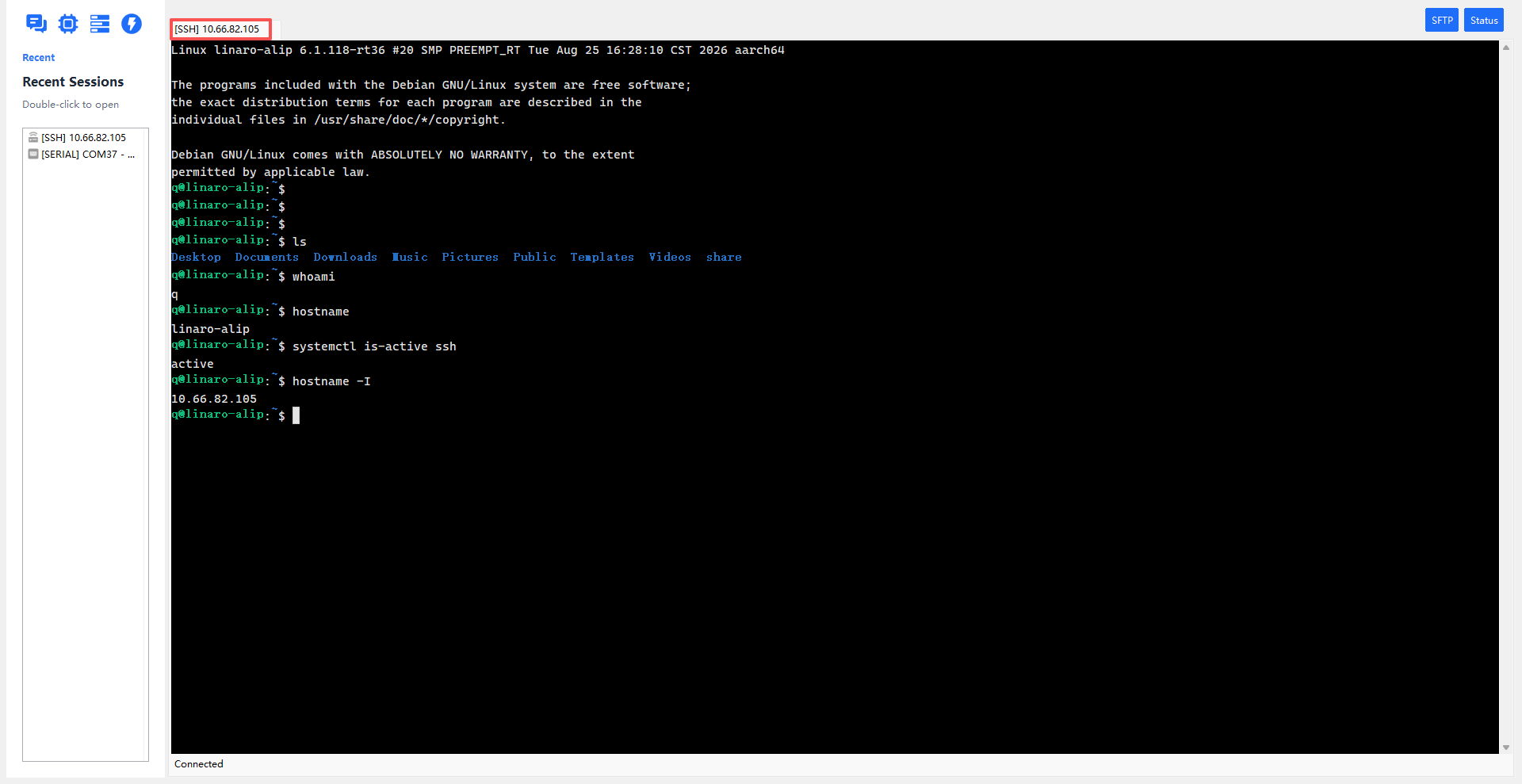
After clicking Connect, enter the user’s password as prompted. After successful login, you can operate the Quectel Pi M2 Debian terminal in QPiTerminal.
After successful login, you can execute the following commands to verify:
whoami
hostname
systemctl is-active ssh
hostname -I
Logging in with a Specified Port
If you have changed the SSH port to a non-default port, for example 2222, the login command on the computer needs the -p parameter:
ssh -p 2222 <username>@<ip-address>
User Management
It is recommended to log in via SSH as a regular user and use sudo when administrator privileges are needed. View the current user information:
id
Create a new user:
sudo adduser <username>
Add a user to the sudo group:
sudo usermod -aG sudo <username>
To disable SSH login for a specific user, you can use DenyUsers or AllowUsers in /etc/ssh/sshd_config to control which accounts are allowed to log in. For example, to only allow the q user to log in:
AllowUsers q
After modification, execute:
sudo sshd -t
sudo systemctl restart ssh
Troubleshooting
Issue |
Troubleshooting Method |
|---|---|
Connection timeout on the computer |
Confirm that the development board and computer networks can reach each other; check whether the IP address is correct; confirm the Ethernet cable, Wi-Fi, or USB network connection is normal. |
|
Run |
Password error prompt |
Confirm whether the username and password are correct; you can first log in to the system through the serial console and then reset the user password. |
First connection prompts host key confirmation |
Enter |
Unable to log in after modifying configuration |
Enter the system through the serial console or a local monitor, run |
|
Check whether the hostname in |